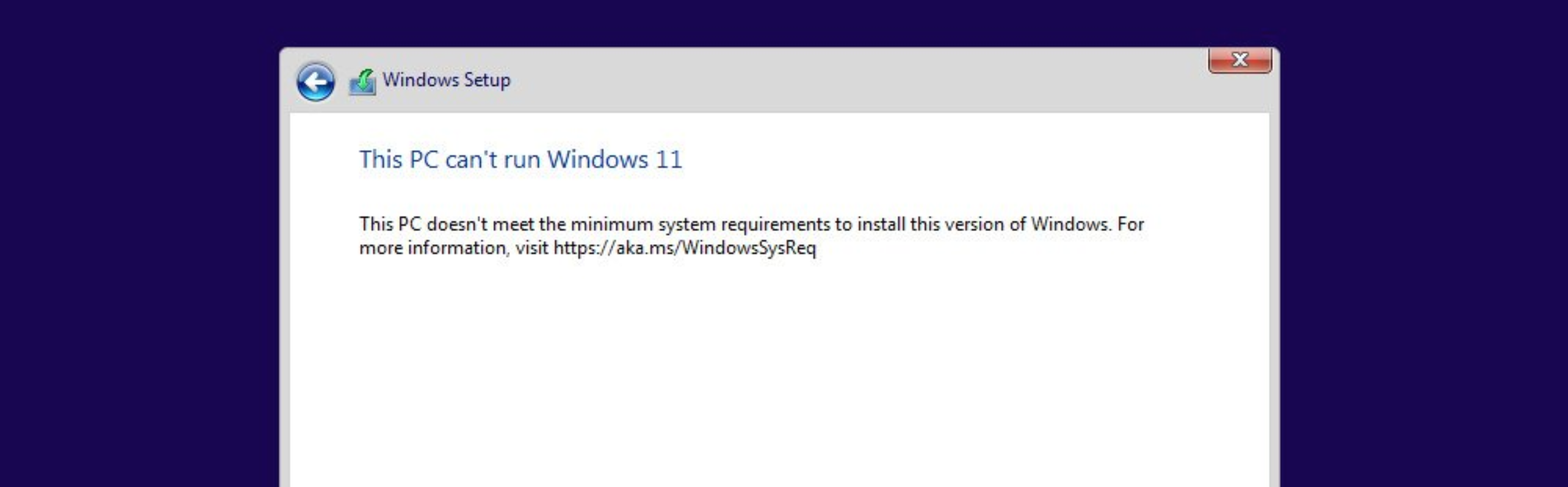
How to fix “This PC can’t run Windows 11” whilst installing Windows 11
I’ve just had the most frustrating experience trying to install the new version of Windows on an SSD.
Microsoft has introduced “Minimum Requirements” for running Windows 11, some of which (CPU and RAM specs) make some degree of sense at least, but they also include secure boot and TPM security requirements. Even if your motherboard supports these features (like mine does) and even if you’ve turned them on in the BIOS (like I did) sometimes it seems Windows cannot detect this, so it simply throws its hands up and won’t let you install the operating system.
You can actually bypass all of these asinine checks quite easily (for now at least, I’m hoping they don’t patch this method out) by adding a registry key via the command prompt.
First, click the back arrow in the top left corner of the window with the This PC can’t run Windows 11 message.
Once you’re on the previous screen, press SHIFT + F10 to open the command prompt console.
Type “regedit” into the console and hit ENTER.
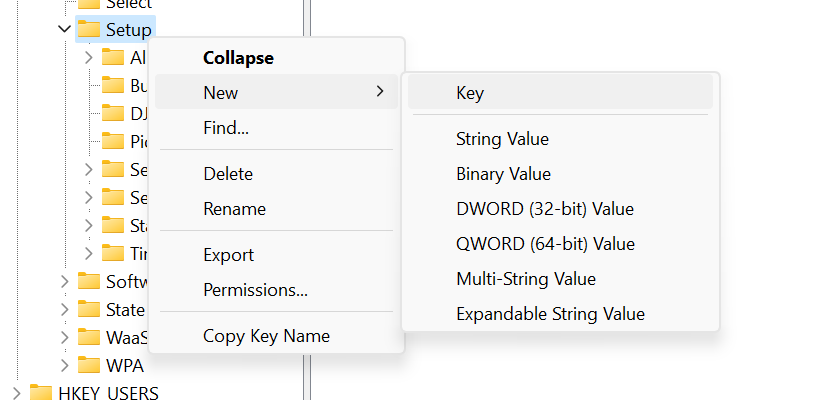
You should now see the registry editor screen. In the left hand tree view, navigate to HKEY_LOCAL_MACHINE\SYSTEM\Setup\LabConfig. If you don’t already have a LabConfig folder, you can right-click on the parent folder Setup and click New → Key to create one:
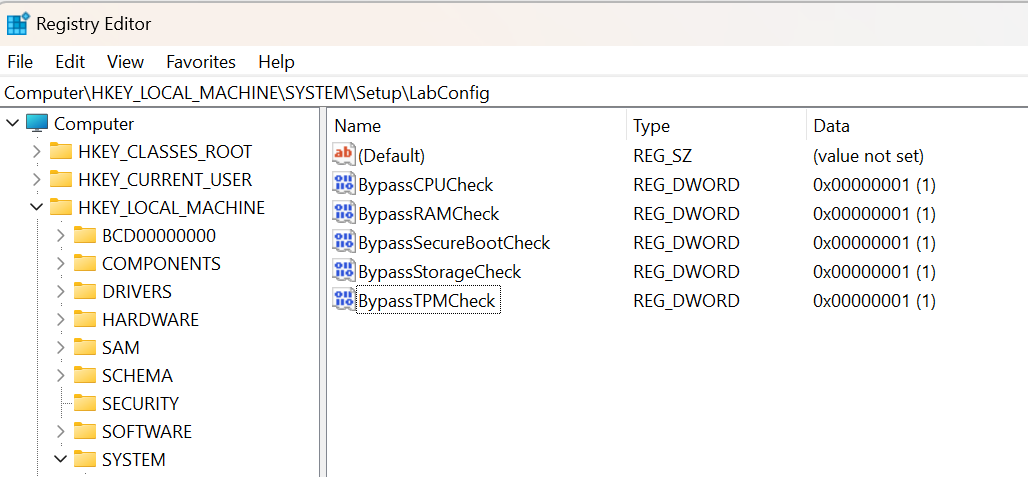
Inside LabConfig, you want to right click under the (Default) entry and create 5 new DWORD (32 Bit) entries, called exactly the following:
- BypassCPUCheck
- BypassRAMCheck
- BypassSecureBootCheck
- BypassStorageCheck
- BypassTPMCheck
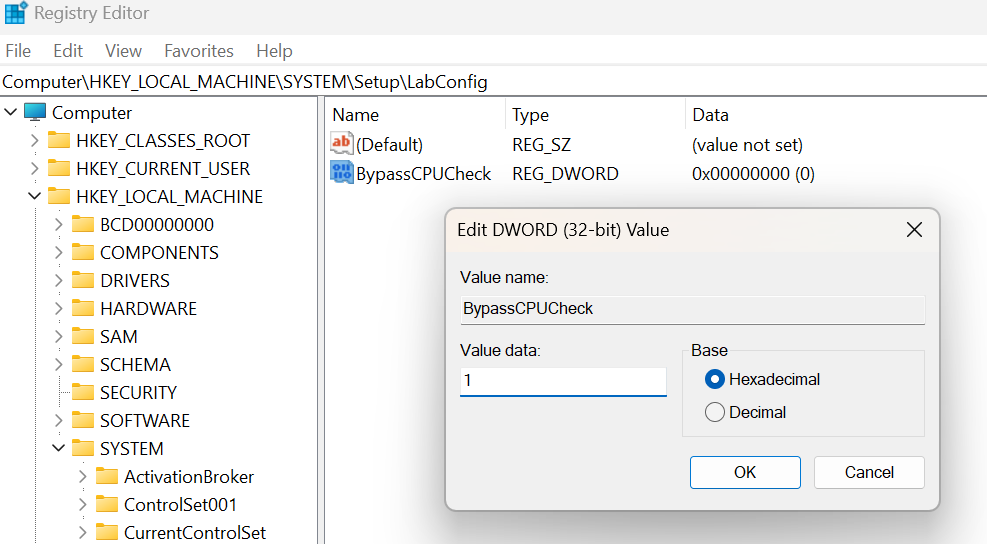
Once you’ve added all these, click on each and set the value to 1:
The final list of entries should look like this:
That’s it! If you now simply close the registry editor and continue on with the installation process, you shouldn’t get that message anymore. You may now continue on to undoubtedly many more headaches using Windows 11.